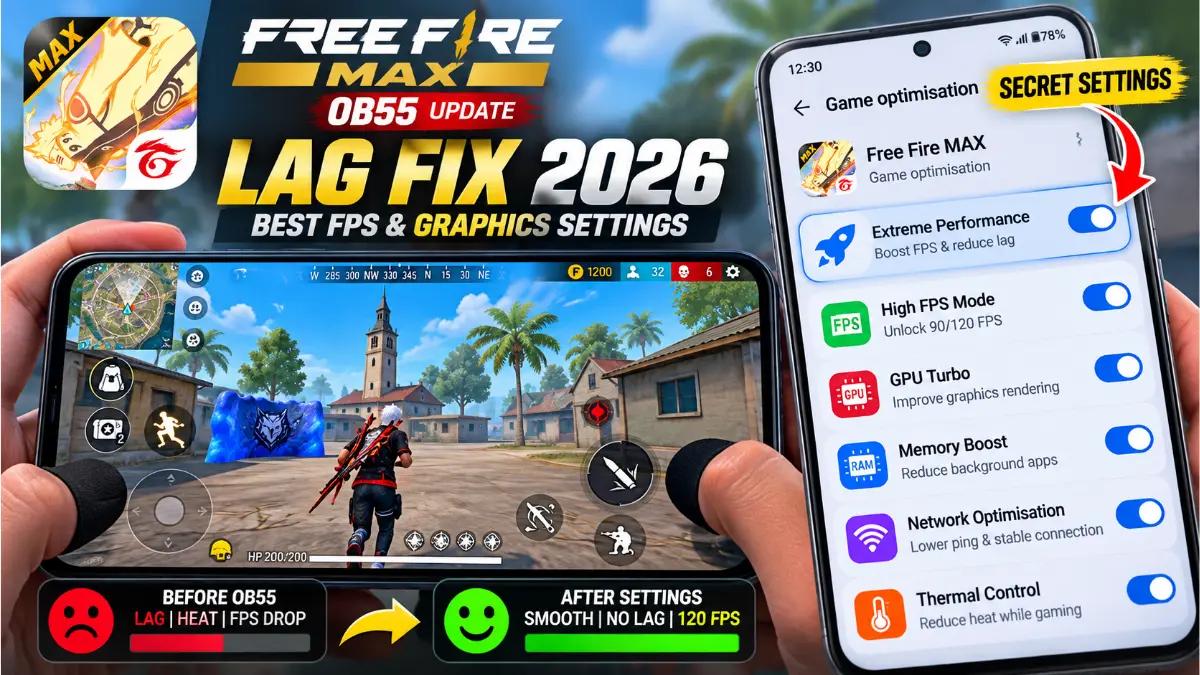
Free Fire MAX OB55 Lag Fix 2026: Best Graphics, FPS & Android Settings
Experiencing lag, sudden FPS drops or overheating in Free Fire MAX after the OB55 update? Adjusting your graphics settings and optimising your Android phone may help you achieve smoother gameplay.
Free Fire MAX offers enhanced graphics and visual effects, but demanding settings can cause performance problems on devices that cannot sustain them.
This guide covers Free Fire MAX's documented Display settings, FPS options, phone optimisation techniques and safe Developer Options recommendations.
1. Best Free Fire MAX OB55 Display Settings
To access your graphics settings, open Free Fire MAX, tap the Settings gear icon in the lobby and select Display.
Depending on your game version, device and selected graphics preset, the available options may include Graphics, High Res., Shadow, Filter, High FPS, Performance Mode and Experimental Frame Rate Boost.
Some additional options may be hidden or unavailable on certain devices.
Graphics: Smooth, Standard, Ultra and Max
The graphics presets control the overall visual quality of Free Fire MAX.
- Smooth: Reduces graphical demands and is a good starting point for low-end smartphones.
- Standard: Provides a balance between visual quality and performance.
- Ultra: Enables more detailed visuals and requires more processing power.
- Max: Provides the highest available graphical quality on supported devices.
For players experiencing stuttering or overheating, start with Smooth and test whether the game becomes more stable.
Avoid selecting Max simply because your phone has a large amount of RAM. GPU performance and thermal management are also important.
High FPS: Choose a stable setting
High FPS controls the game's available frame-rate mode.
Normal and High are documented options, although the choices shown may vary by device and game version.
If your phone struggles during combat, start with Normal. If gameplay remains stable, try the higher supported option and compare its performance.
Selecting High does not guarantee a particular FPS. The actual frame rate depends on the game, hardware and thermal conditions.
High Res.: Prioritise performance
High Res. controls the resolution quality of supported visual elements.
If your version of Free Fire MAX provides this option, select the lower available resolution setting when troubleshooting performance.
Higher resolution improves visual sharpness but may increase GPU workload.
This option may be unavailable with certain graphics presets or performance configurations.
Shadow: Disable if available
Shadows can make the environment more visually detailed, but they can also increase rendering demands.
If the Shadow option is available in your Display menu, disabling it is worth testing when you experience GPU-related frame drops.
Some graphics presets or performance modes automatically manage this setting.
Filter: Choose according to visibility
Supported versions of Free Fire MAX include visual filters such as Classic, Bright, Vivid and Ocean.
These change the appearance and colours of the game.
Classic is a reasonable starting point for players who prefer the default appearance.
Changing a filter is not a guaranteed FPS optimisation.
Performance Mode: Use only if available
Some versions of Free Fire MAX provide an in-game Performance Mode that prioritises smoother gameplay over certain visual enhancements.
If your Display menu includes it, test the option and compare gameplay stability.
Do not confuse Free Fire MAX's in-game Performance Mode with the separate performance features provided by Android manufacturers.
2. Experimental Frame Rate Boost: Should You Enable It?
Experimental Frame Rate Boost has appeared in Free Fire during 2026, but its availability and behaviour can vary by device and game version.
The feature is intended to improve perceived smoothness. However, players have reported different experiences, including changes in aiming feel and input responsiveness.
For competitive gameplay, test the feature in Training or an unranked match before using it in Ranked mode.
If you notice input delay, aiming problems, stuttering or increased heat, disable the feature and compare performance.
It should not be treated as a universal 90 FPS or 120 FPS unlocker.
3. Recommended Graphics Settings for Low-End Phones
The ideal configuration depends on your phone's processor, GPU, RAM and cooling system.
For a device that struggles with Free Fire MAX, try the following approach:
Setting
Starting recommendation
Graphics
Smooth
High FPS
Normal
High Res.
Lower available option
Shadow
Off, if available
Filter
Classic, if available
Experimental Frame Rate Boost
Test separately, if available
Not every option will be visible on every device or graphics preset.
Change one setting at a time, test the game and keep the combination that delivers the most consistent performance.
4. Best Android Phone Settings for Free Fire MAX
Apart from the game's Display menu, Android provides several features that can affect gaming performance.
These settings belong to your phone's operating system, not Free Fire MAX.
Disable Battery Saver when appropriate
Battery-saving modes may restrict some performance-related functions.
Open your phone's Settings, find Battery or Power Saving and check whether Battery Saver is enabled.
Temporarily disable it while gaming if you need better performance.
Performance-focused settings can increase battery consumption and heat, so use them according to your device's capabilities.
Use your phone's official gaming mode
Some Android manufacturers provide built-in gaming optimisation tools.
Examples include Samsung Game Booster, Xiaomi Game Turbo and gaming features on supported realme, vivo and iQOO devices.
The features and menu locations vary by model and software version.
If your device provides a performance profile, test it against the balanced or standard profile.
Samsung Game Booster
On supported Samsung Galaxy devices, open Gaming Hub and navigate to Game Booster > Game optimisation.
Select Performance if you want the phone to prioritise gaming performance.
Standard mode provides a more balanced approach to performance and battery usage.
Some Galaxy models also allow individual game customisation, including supported FPS and resolution controls.
These are Samsung system features and should not be confused with settings inside Free Fire MAX.
5. Best Android Developer Options for Free Fire MAX
Developer Options contains Android's advanced debugging and diagnostic controls.
It does not provide a universal FPS boost, and most players do not need to modify these settings.
If Developer Options is already enabled, consider the following recommendations.
Developer option
Recommendation
Window animation scale
Default; 0.5x is optional
Transition animation scale
Default; 0.5x is optional
Animator duration scale
Default; 0.5x is optional
Force 4x MSAA
Leave disabled
Disable HW overlays
Leave disabled
Background process limit
Standard limit
Don't keep activities
Off
Reducing animation scales can make Android interface transitions appear faster, but it does not directly increase Free Fire MAX FPS.
Force 4x MSAA enables anti-aliasing in supported applications. It is not a reliable gaming performance booster.
Disabling hardware overlays can increase processing requirements, so it should not be used as a general lag fix.
Keep advanced debugging options at their defaults unless you are addressing a specific problem.
6. How to Reduce Overheating and FPS Drops
Free Fire MAX can become less responsive during long gaming sessions if your phone becomes too hot.
When a device reaches certain temperature limits, its thermal management system may reduce performance.
To help prevent overheating:
- Lower your in-game graphics quality.
- Avoid playing in direct sunlight.
- Pause unnecessary background downloads.
- Avoid charging while gaming if it causes excessive heat.
- Remove a thick phone case if it traps heat.
- Take a break when your phone becomes unusually warm.
Do not disable built-in thermal protection or install tools that claim to bypass temperature limits.
7. Fix High Ping and Network Lag
FPS drops and network lag are different problems.
If your character moves unevenly because the phone cannot render frames consistently, adjusting your internet connection may not solve the issue.
However, if you experience delayed actions, unstable ping or disconnections, check your network.
Try these steps:
- Use a stable Wi-Fi or mobile data connection.
- Pause large downloads and uploads.
- Check whether other devices are heavily using your Wi-Fi.
- Compare Wi-Fi and mobile data.
- Restart your router if necessary.
- Avoid unnecessary VPNs and unofficial ping boosters.
Garena's troubleshooting guidance identifies 150 ms or below as an ideal ping, although lower and more consistent latency is preferable.
Changing your Android Private DNS does not guarantee lower gaming ping.
8. Clear Cache and Keep Your Phone Updated
If Free Fire MAX continues to experience problems, check for game and system updates.
Install the latest compatible version of Free Fire MAX from an authorised source.
On Android, you can also open Settings > Apps > Free Fire MAX > Storage and select Clear Cache, if that option is available.
Avoid selecting Clear Data or Clear Storage as a routine performance fix, since doing so may remove locally stored application information.
Make sure your account and game progress are securely linked before resetting or reinstalling the game.
Also check your available storage. Android devices can experience general performance problems when storage becomes critically low.
9. Avoid Unofficial FPS Unlockers and GFX Tools
Some third-party applications promise to unlock 120 FPS, eliminate lag or enable unsupported graphics options.
These claims should be treated cautiously.
Unofficial tools that modify the game client or its files can create security, compatibility and account risks.
Use Free Fire MAX's official settings and your phone manufacturer's built-in gaming features instead.
Frequently Asked Questions
What is the best Free Fire MAX graphics setting for low-end phones?
Smooth is a useful starting point because it reduces graphical demands compared with higher-quality presets.
Should I enable High FPS?
Test the available FPS modes. If a higher setting causes stuttering or overheating, return to a lower setting.
Does Experimental Frame Rate Boost improve gameplay?
It may improve perceived smoothness on some supported devices, but results vary. Test it and disable it if you experience input delay or aiming problems.
Can Developer Options unlock 120 FPS?
No Android Developer Options setting universally unlocks 120 FPS in Free Fire MAX. Actual frame-rate support depends on the game and device.
Why does Free Fire MAX lag on an 8GB RAM phone?
RAM is only one factor. GPU performance, processor capability, temperature, software compatibility and background activity can also affect gameplay.
Final Thoughts
Reducing Free Fire MAX OB55 lag starts with selecting graphics settings that match your phone's hardware.
Begin with Smooth graphics, choose a stable supported FPS mode and reduce demanding visual settings when necessary.
Use your phone's official gaming features, avoid unnecessary Developer Options changes and prioritise consistent performance over maximum graphics quality.
For more gaming tips, sensitivity recommendations and headshot guides, visit Taki FF.