The Free Fire OB54 update (9th Anniversary & Fire Kickoff) has brought exciting new features, but it has also introduced significant performance issues for many players. From sudden frame drops due to the rich 9th Anniversary assets, to high device temperature and "Network Connection Errors," the game has become demanding on low-end devices.
If you are experiencing lag in OB54, don't worry. Based on our deep research of Garena's official patch optimization mechanics, we have compiled the ultimate optimization guide to get you back to smooth, 60 FPS gameplay.
1. Optimize the 9th Anniversary Assets & Venue Details
In OB54, the special 9th Anniversary venue graphics and lobby background require more memory. Garena has added an asset compression feature that allows low-end devices to load simpler textures. Go to your Download Center and delete any unused lobby resources or anniversary skins to immediately free up system RAM and reduce background loading stutter.
2. Use the "Experimental Frame Rate Boost"
The **Experimental Frame Rate Boost** is Garena's built-in tool specifically designed to stabilize your FPS during intense close-range gunfights and final zone rushes.
How to enable: Go to Settings > Display. Scroll down to find "Experimental Frame Rate Boost" and set it to ON. Combine this with High FPS set to "High" for maximum frame stability.
3. The Best Graphics Settings for OB54
Do not play on "Ultra" or "Standard" graphics if your phone is heating up. In OB54, the engine load is heavier. To maximize performance, use these settings:
- Graphics: Smooth (Always use Smooth if you want the highest possible FPS).
- High FPS: High (Essential for reducing input lag).
- Auto Scale: Off.
- High Res: Normal.
4. Fixing "Network Connection Error"
Getting network errors during matches? This is often due to DNS congestion during update rollouts.
The Pro Solution: Set a Private DNS on your phone. Go to Settings > Connection > Private DNS and type dns.google. This bypasses congested ISP routes and connects you directly to Garena's servers.
5. Android Developer Options Tweaks
If you're on Android, these three hidden settings can significantly reduce UI lag and system overhead while playing Free Fire:
- Enable Developer Options (Tap Build Number 7 times).
- Find Window Animation Scale, Transition Animation Scale, and Animator Duration Scale.
- Set all three to .5x (or Off). This makes your device respond much faster.
- Enable Force 4x MSAA (Only for mid-range phones - this smoothens graphics but might increase heat).
6. Manage Device Heat & Storage
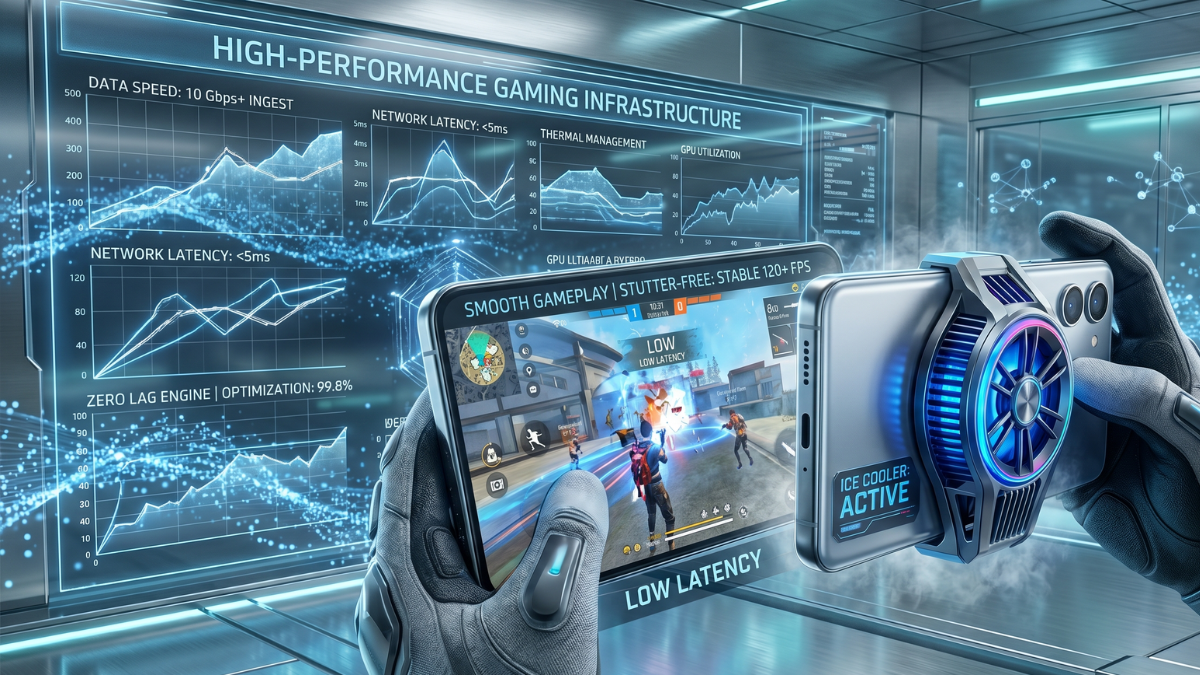
OB54 causes devices to heat up faster. When your phone gets hot, the processor automatically slows down (Thermal Throttling), causing "stutter lag."
- Storage: Ensure at least 6GB of free space. A full storage disk slows down the entire OS.
- Expansion Packs: Only download the maps you play and the skins you currently equip. Go to the Download Center and delete unused resources.
- Cooling: Take off your phone case during long gaming sessions. Avoid playing while charging at all costs.
Warning: Avoid FF Config Files
Never use "No Lag Config" or third-party boosting apps. Garena's anti-cheat is very active in OB54, and using modified game files can lead to a permanent account ban. Stick to official settings mentioned in this guide.
By following these steps, you should see a massive improvement in your Free Fire performance. For even better aim and precision, don't forget to generate your custom OB54 Sensitivity Settings using our AI tool!